Developer, Icon & App ID
On the product page, first confirm the name is Shadowrocket, then check that the developer is Shadow Launch Technology Limited. The app icon should match the official icon used on this site. Finally, check for id932747118 in the product page URL. All three details should identify the same app. Similar names may appear in search results; seeing “Shadowrocket” alone is not enough to verify the listing.
Verifying the app before purchasing separates finding an app from confirming its identity. Check the price, compatibility, and app description on the product page rather than relying on an old screenshot in an article. The purchase guide brings the verification steps together. If search results are unclear or you have questions before buying, read it first, then return to the App Store.
Store Availability & Account Region
The App Store displays apps and prices according to the country or region associated with your Apple ID. Shadowrocket may not appear in searches in the mainland China storefront. Check your account's storefront region to understand why the product page may or may not appear or allow a purchase. Being able to open a webpage does not mean the current storefront can complete a transaction. Refer to the storefront for your account for the displayed details and payment terms.
If the expected product does not appear after you open a link, do not assume the device is at fault. First check the app ID in the link, then review your account region, storefront status, and device compatibility. Follow the system and App Store instructions for changes involving account details or purchase eligibility. This manual explains how to verify the listing; do not substitute another product with a similar name.
One-Time Purchase & Restoring Purchases
Shadowrocket is a closed-source commercial app sold as a one-time purchase on the App Store. The US storefront price is approximately US$2.99; other storefronts display local currency, and the purchase page shows the actual price. Refer to the App Store listing for purchase eligibility across iPhone and iPad, availability on Mac and Apple TV, and system requirements.
When changing devices or reinstalling, first check the purchase history for your current Apple ID, then restore the app from your purchased items or its product page. After restoring the app, check the server list, selected Config, and system VPN configuration. If you use iCloud sync, also confirm that the relevant content has arrived on the target device. Purchase eligibility does not mean the configuration is complete, and having a configuration does not mean the current connection is working.
App Purchase ≠ Network Service
Purchasing the app gives you the right to use the client; it does not include a server you can connect to. You need your own existing subscription or server details to import using the guide. This site does not provide, sell, or recommend servers or subscriptions, and does not handle network services. The app purchase, server credentials, subscription updates, and connection results are separate steps; check each one when troubleshooting.
For example, if the app is installed but no servers are listed, first check whether the details were imported. If a subscription updated but the connection fails, check the server and protocol settings. If the server test succeeds but a particular destination fails, check the mode, DNS, and rules. Recording these results separately is more useful for finding the cause than repurchasing the app or changing every setting repeatedly.
App Updates & Configuration Maintenance
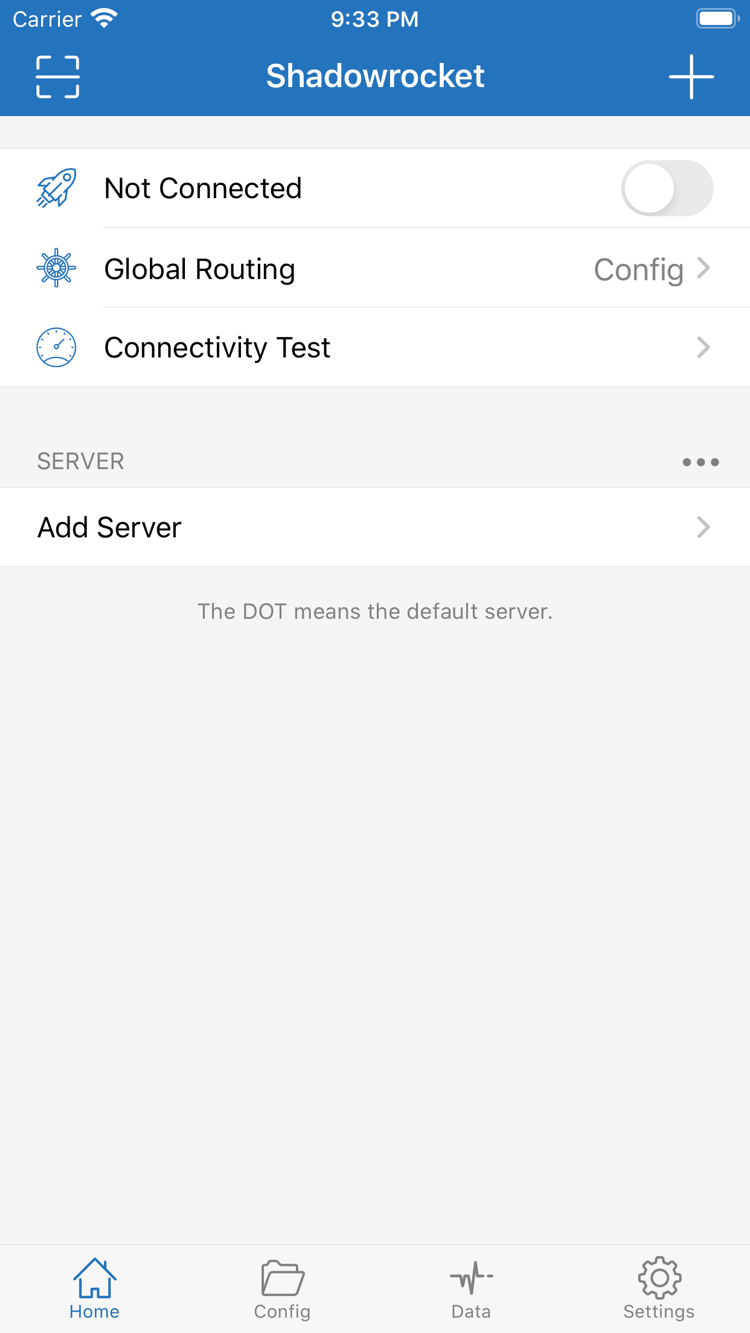
Update the app through the App Store. Automatic updates are managed in system settings. Refer to the store page for current product information; this manual does not list specific version numbers or update dates. If interface entries move, identify their current names, such as Home, Config, and Settings, then follow the purpose of the instructions rather than looking for a fixed location.
Updating the app, updating a subscription, and editing a configuration are different operations. Keep a copy of the original configuration before maintenance. Afterward, check the connection mode and selected file, then test a familiar destination. Traffic in Data can help with monitoring, but it cannot replace a destination access test. To understand keyword scope, read the terminology guide first, then consult the field reference for syntax and matching order.